
명령줄 인터페이스
버전 1.16.8의 새로운 기능
PyMuPDF 는 명령줄에서 유틸리티 함수를 수행하는 데에도 사용할 수 있습니다. 이 기능은 가장 기본적인 스크립트 작성 중 일부를 대체해야 합니다.
인정하건대, MuPDF CLI mutool 과 기능적 중복이 있습니다. 반면, PDF 임베디드 파일은 MuPDF 에서 더 이상 지원되지 않으므로, PyMuPDF 는 여기서 고유한 기능을 제공합니다.
호출
명령줄 인터페이스는 두 가지 방법으로 호출할 수 있습니다.
설치된
pymupdf명령을 사용합니다:pymupdf <command and parameters>
또는 PyMuPDF 의
pymupdf모듈과 함께 Python의-m스위치를 사용합니다:python -m pymupdf <command and parameters>
일반 참고 사항:
"-h"를 통해 도움말을 요청하거나,"command -h"를 통해 명령별 도움말을 요청합니다.모호함을 유발하지 않는 경우 매개변수를 축약할 수 있습니다.
여러 명령은
-pages및-xrefs매개변수를 지원합니다. 이들은 하위 선택을 위한 것입니다. 다음을 참고하세요:이 유틸리티의 페이지 번호 는 1부터 시작 해야 합니다.
유효한
xref번호는 1부터 시작합니다.단일 정수 또는 정수 범위 의 쉼표로 구분된 목록을 지정합니다. 범위 는 하이픈 “-” 로 구분된 정수 쌍입니다. 정수는 최대 페이지(또는 xref 번호)를 초과하지 않아야 합니다. 최대값을 지정하려면 기호 변수 “N” 을 사용할 수 있습니다. 정수 또는 범위는 여러 번 발생할 수 있으며, 어떤 순서로든 발생할 수 있고 겹칠 수 있습니다. 범위에서 첫 번째 숫자가 두 번째 숫자보다 크면 해당 항목이 역순으로 처리됩니다.
스크립트 내에서 모듈을 사용하는 방법:
>>> import pymupdf.__main__
>>> cmd = "clean input.pdf output.pdf -pages 1,N".split()  # prepare command line
>>> saved_parms = sys.argv[1:]  # save original command line
>>> sys.argv[1:] = cmd  # store new command line
>>> pymupdf.__main__.()  # execute module
>>> sys.argv[1:] = saved_parms  # restore original command line
다음 2줄 코드를 사용하고 Nuitka 로 standalone 모드에서 컴파일합니다. 이것은 모듈의 모든 기능을 가진 CLI 실행 파일을 제공하며, Python, PyMuPDF 또는 MuPDF 가 설치되지 않은 모든 호환 플랫폼에서 사용할 수 있습니다.
from pymupdf.__main__ import main
main()
정리 및 복사
이 명령은 PDF를 최적화하고 결과를 새 파일에 저장합니다. 암호화, 복호화 및 하위 문서 생성에도 사용할 수 있습니다. 이것은 MuPDF 명령줄 유틸리티 “mutool clean” 과 대부분 유사합니다:
pymupdf clean -h
usage: pymupdf clean [-h] [-password PASSWORD]
                [-encryption {keep,none,rc4-40,rc4-128,aes-128,aes-256}]
                [-owner OWNER] [-user USER] [-garbage {0,1,2,3,4}]
                [-compress] [-ascii] [-linear] [-permission PERMISSION]
                [-sanitize] [-pretty] [-pages PAGES]
                input output

-------------- optimize PDF or create sub-PDF if pages given --------------

positional arguments:
input                 PDF filename
output                output PDF filename

optional arguments:
-h, --help            show this help message and exit
-password PASSWORD    password
-encryption {keep,none,rc4-40,rc4-128,aes-128,aes-256}
                      encryption method
-owner OWNER          owner password
-user USER            user password
-garbage {0,1,2,3,4}  garbage collection level
-compress             compress (deflate) output
-ascii                ASCII encode binary data
-linear               format for fast web display
-permission PERMISSION
                      integer with permission levels
-sanitize             sanitize / clean contents
-pretty               prettify PDF structure
-pages PAGES          output selected pages, format: 1,5-7,50-N
“-pages” 를 지정하면 페이지 관련 객체만 복사되며, 예를 들어 임베디드 파일과 같은 문서 레벨 항목은 복사되지 않습니다.
매개변수 의미는 Document.save() 를 참조하세요.
글꼴 및 이미지 추출
선택한 PDF 페이지에서 글꼴 또는 이미지를 원하는 디렉토리로 추출합니다:
pymupdf extract -h
usage: pymupdf extract [-h] [-images] [-fonts] [-output OUTPUT] [-password PASSWORD]
                    [-pages PAGES]
                    input

--------------------- extract images and fonts to disk --------------------

positional arguments:
input                 PDF filename

optional arguments:
-h, --help            show this help message and exit
-images               extract images
-fonts                extract fonts
-output OUTPUT        output directory, defaults to current
-password PASSWORD    password
-pages PAGES          only consider these pages, format: 1,5-7,50-N
이미지 파일명 은 명명 체계에 따라 생성됩니다: “img-xref.ext”, 여기서 “ext” 는 이미지와 연결된 확장자이고 “xref” 는 이미지 PDF 객체의 xref 입니다.
글꼴 파일명 은 글꼴 이름과 연결된 확장자로 구성됩니다. 글꼴 이름의 공백은 하이픈 “-” 로 대체됩니다.
출력 디렉토리는 이미 존재해야 합니다.
참고
출력 디렉토리 생성 제외, 이 기능은 이 스크립트 와 기능적으로 동일 하며 이를 대체합니다.
PDF 문서 결합
여러 PDF 파일을 결합하려면 다음을 지정합니다:
pymupdf join -h
usage: pymupdf join [-h] -output OUTPUT [input [input ...]]

---------------------------- join PDF documents ---------------------------

positional arguments:
input           input filenames

optional arguments:
-h, --help      show this help message and exit
-output OUTPUT  output filename

specify each input as 'filename[,password[,pages]]'
참고
각 입력은 “filename,password,pages” 형식으로 입력해야 합니다. 비밀번호와 페이지는 선택 사항입니다.
“pages” 항목을 사용하는 경우 비밀번호 항목이 필수 입니다. PDF에 비밀번호가 필요하지 않으면 두 개의 쉼표를 지정합니다.
“pages” 형식은 이 섹션 상단에서 설명한 것과 동일합니다.
각 입력 파일은 사용 후 즉시 닫힙니다. 따라서 그 중 하나를 출력 파일명으로 사용하여 덮어쓸 수 있습니다.
예제: 다음 파일을 결합하려면
file1.pdf: 모든 페이지, 뒤에서 앞으로, 비밀번호 없음
file2.pdf: 마지막 페이지, 첫 페이지, 비밀번호: “secret”
file3.pdf: 페이지 5부터 마지막까지, 비밀번호 없음
결과를 output.pdf 로 저장하려면 다음 명령을 입력합니다:
pymupdf join -o output.pdf file1.pdf,,N-1 file2.pdf,secret,N,1 file3.pdf,,5-N
저수준 정보
PDF 내부 정보를 표시합니다. 다시 말하지만, “mutool show” 와 유사점이 있습니다:
pymupdf show -h
usage: pymupdf show [-h] [-password PASSWORD] [-catalog] [-trailer] [-metadata]
                [-xrefs XREFS] [-pages PAGES]
                input

------------------------- display PDF information -------------------------

positional arguments:
input               PDF filename

optional arguments:
-h, --help          show this help message and exit
-password PASSWORD  password
-catalog            show PDF catalog
-trailer            show PDF trailer
-metadata           show PDF metadata
-xrefs XREFS        show selected objects, format: 1,5-7,N
-pages PAGES        show selected pages, format: 1,5-7,50-N
예제:
pymupdf show x.pdf
PDF is password protected

pymupdf show x.pdf -pass hugo
authentication unsuccessful

pymupdf show x.pdf -pass jorjmckie
authenticated as owner
file 'x.pdf', pages: 1, objects: 19, 58 MB, PDF 1.4, encryption: Standard V5 R6 256-bit AES
Document contains 15 embedded files.

pymupdf show FDA-1572_508_R6_FINAL.pdf -tr -m
'FDA-1572_508_R6_FINAL.pdf', pages: 2, objects: 1645, 1.4 MB, PDF 1.6, encryption: Standard V4 R4 128-bit AES
document contains 740 root form fields and is signed

------------------------------- PDF metadata ------------------------------
       format: PDF 1.6
        title: FORM FDA 1572
       author: PSC Publishing Services
      subject: Statement of Investigator
     keywords: None
      creator: PScript5.dll Version 5.2.2
     producer: Acrobat Distiller 9.0.0 (Windows)
 creationDate: D:20130522104413-04'00'
      modDate: D:20190718154905-07'00'
   encryption: Standard V4 R4 128-bit AES

------------------------------- PDF trailer -------------------------------
<<
/DecodeParms <<
    /Columns 5
    /Predictor 12
>>
/Encrypt 1389 0 R
/Filter /FlateDecode
/ID [ <9252E9E39183F2A0B0C51BE557B8A8FC> <85227BE9B84B724E8F678E1529BA8351> ]
/Index [ 1388 258 ]
/Info 1387 0 R
/Length 253
/Prev 1510559
/Root 1390 0 R
/Size 1646
/Type /XRef
/W [ 1 3 1 ]
>>
임베디드 파일 명령
다음 명령은 임베디드 파일을 다룹니다 – 이것은 v1.14 이후 MuPDF 에서 완전히 제거된 기능이며, 따라서 모든 명령줄 도구에서도 제거되었습니다.
정보
임베디드 파일 이름을 표시합니다(긴 형식 또는 짧은 형식):
pymupdf embed-info -h
usage: pymupdf embed-info [-h] [-name NAME] [-detail] [-password PASSWORD] input

--------------------------- list embedded files ---------------------------

positional arguments:
input               PDF filename

optional arguments:
-h, --help          show this help message and exit
-name NAME          if given, report only this one
-detail             show detail information
-password PASSWORD  password
예제:
pymupdf embed-info some.pdf
'some.pdf' contains the following 15 embedded files.

20110813_180956_0002.jpg
20110813_181009_0003.jpg
20110813_181012_0004.jpg
20110813_181131_0005.jpg
20110813_181144_0006.jpg
20110813_181306_0007.jpg
20110813_181307_0008.jpg
20110813_181314_0009.jpg
20110813_181315_0010.jpg
20110813_181324_0011.jpg
20110813_181339_0012.jpg
20110813_181913_0013.jpg
insta-20110813_180944_0001.jpg
markiert-20110813_180944_0001.jpg
neue.datei
각 항목에 대한 상세 출력은 다음과 같습니다:
     name: neue.datei
 filename: text-tester.pdf
ufilename: text-tester.pdf
     desc: nur zum Testen!
     size: 4639
   length: 1566
추출
다음과 같이 임베디드 파일을 추출합니다:
pymupdf embed-extract -h
usage: pymupdf embed-extract [-h] -name NAME [-password PASSWORD] [-unsafe] [-output OUTPUT]
                        input

---------------------- extract embedded file to disk ----------------------

positional arguments:
input                 PDF filename

optional arguments:
-h, --help            show this help message and exit
-name NAME            name of entry
-password PASSWORD    password
-unsafe               allow write to stored name even if an existing file or outside current directory
-output OUTPUT        output filename, default is stored name
자세한 내용은 Document.embfile_get() 을 참조하세요. 예제(이전 섹션 참조):
pymupdf embed-extract some.pdf -name neue.datei
Saved entry 'neue.datei' as 'text-tester.pdf'
삭제
다음과 같이 임베디드 파일을 삭제합니다:
pymupdf embed-del -h
usage: pymupdf embed-del [-h] [-password PASSWORD] [-output OUTPUT] -name NAME input

--------------------------- delete embedded file --------------------------

positional arguments:
input                 PDF filename

optional arguments:
-h, --help            show this help message and exit
-password PASSWORD    password
-output OUTPUT        output PDF filename, incremental save if none
-name NAME            name of entry to delete
자세한 내용은 Document.embfile_del() 을 참조하세요.
삽입
다음 명령을 사용하여 새 임베디드 파일을 추가합니다:
pymupdf embed-add -h
usage: pymupdf embed-add [-h] [-password PASSWORD] [-output OUTPUT] -name NAME -path
                    PATH [-desc DESC]
                    input

---------------------------- add embedded file ----------------------------

positional arguments:
input                 PDF filename

optional arguments:
-h, --help            show this help message and exit
-password PASSWORD    password
-output OUTPUT        output PDF filename, incremental save if none
-name NAME            name of new entry
-path PATH            path to data for new entry
-desc DESC            description of new entry
“NAME” 은 PDF에 이미 존재해서는 안 됩니다. 자세한 내용은 Document.embfile_add() 를 참조하세요.
업데이트
다음 명령을 사용하여 기존 임베디드 파일을 업데이트합니다:
pymupdf embed-upd -h
usage: pymupdf embed-upd [-h] -name NAME [-password PASSWORD] [-output OUTPUT]
                    [-path PATH] [-filename FILENAME] [-ufilename UFILENAME]
                    [-desc DESC]
                    input

--------------------------- update embedded file --------------------------

positional arguments:
input                 PDF filename

optional arguments:
-h, --help            show this help message and exit
-name NAME            name of entry
-password PASSWORD    password
-output OUTPUT        Output PDF filename, incremental save if none
-path PATH            path to new data for entry
-filename FILENAME    new filename to store in entry
-ufilename UFILENAME  new unicode filename to store in entry
-desc DESC            new description to store in entry

except '-name' all parameters are optional
이 메서드를 사용하여 파일의 메타 정보를 변경합니다 – “PATH” 만 생략하면 됩니다. 자세한 내용은 Document.embfile_upd() 를 참조하세요.
복사
PDF 간에 임베디드 파일을 복사합니다:
pymupdf embed-copy -h
usage: pymupdf embed-copy [-h] [-password PASSWORD] [-output OUTPUT] -source
                    SOURCE [-pwdsource PWDSOURCE]
                    [-name [NAME [NAME ...]]]
                    input

--------------------- copy embedded files between PDFs --------------------

positional arguments:
input                 PDF to receive embedded files

optional arguments:
-h, --help            show this help message and exit
-password PASSWORD    password of input
-output OUTPUT        output PDF, incremental save to 'input' if omitted
-source SOURCE        copy embedded files from here
-pwdsource PWDSOURCE  password of 'source' PDF
-name [NAME [NAME ...]]
                      restrict copy to these entries
텍스트 추출
v1.18.16의 새로운 기능
임의의 지원 문서 에서 텍스트 파일로 텍스트를 추출합니다. 현재 세 가지 출력 형식 모드가 사용 가능합니다: simple, block sorting 및 물리적 레이아웃 재현.
Simple 텍스트 추출은 문서 페이지에 나타나는 대로 모든 텍스트를 재현합니다 – 특정 읽기 순서로 재배열하려는 시도는 없습니다.
Block sorting 은 텍스트 블록(MuPDF 에 의해 식별됨)을 수직 좌표, 그 다음 수평 좌표의 오름차순으로 정렬합니다. 이것은 기본 텍스트 페이지에 대한 “자연스러운” 읽기 순서를 설정하는 데 충분해야 합니다.
Layout 은 입력 페이지의 원래 모양을 재현하려고 합니다. 다음과 같은 결과를 기대할 수 있습니다(
pymupdf gettext -pages 1 demo1.pdf명령으로 생성됨):
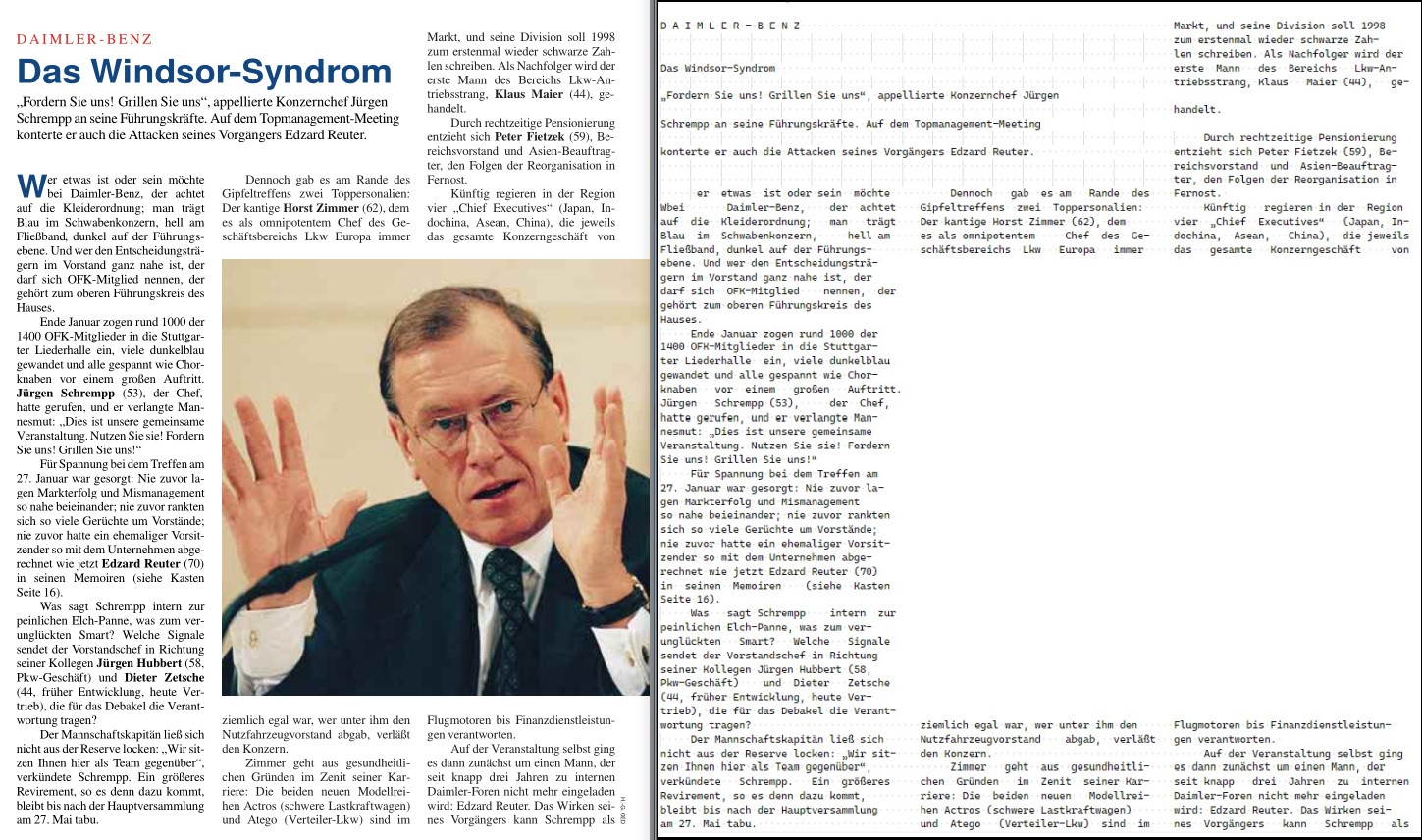
참고
“gettext” 명령은 XPDF 소프트웨어의 CLI 도구 pdftotext (http://www.foolabs.com/xpdf/)와 유사한 기능을 제공합니다 – 이것은 특히 해당 도구의 -layout 및 -table 옵션을 결합하는 “layout” 모드에 해당합니다.
출력 파일의 각 페이지 후에 폼피드 문자 hex(12) 가 기록됩니다 – 입력 페이지에 텍스트가 전혀 없는 경우에도 마찬가지입니다. 이 동작은 옵션을 통해 제어할 수 있습니다.
참고
“layout” 모드의 경우, 수평, 왼쪽에서 오른쪽으로, 위에서 아래로 텍스트만 지원되며 다른 텍스트는 무시됩니다. 이 모드에서 텍스트의 fontsize 가 너무 작으면 텍스트도 무시됩니다.
대조적으로 “Simple” 및 “blocks” 모드는 모든 텍스트 크기나 방향에 대해 모든 텍스트 를 출력합니다.
명령:
pymupdf gettext -h
usage: pymupdf gettext [-h] [-password PASSWORD] [-mode {simple,blocks,layout}] [-pages PAGES] [-noligatures]
                    [-convert-white] [-extra-spaces] [-noformfeed] [-skip-empty] [-output OUTPUT] [-grid GRID]
                    [-fontsize FONTSIZE]
                    input

----------------- extract text in various formatting modes ----------------

positional arguments:
input                 input document filename

optional arguments:
-h, --help            show this help message and exit
-password PASSWORD    password for input document
-mode {simple,blocks,layout}
                        mode: simple, block sort, or layout (default)
-pages PAGES          select pages, format: 1,5-7,50-N
-noligatures          expand ligature characters (default False)
-convert-white        convert whitespace characters to space (default False)
-extra-spaces         fill gaps with spaces (default False)
-noformfeed           write linefeeds, no formfeeds (default False)
-skip-empty           suppress pages with no text (default False)
-output OUTPUT        store text in this file (default inputfilename.txt)
-grid GRID            merge lines if closer than this (default 2)
-fontsize FONTSIZE    only include text with a larger :data:`fontsize` (default 3)
참고
명령 옵션은 모호함을 유발하지 않는 한 축약할 수 있습니다. 따라서 다음은 동일합니다:
... -output text.txt -noligatures -noformfeed -convert-white -grid 3 -extra-spaces ...
... -o text.txt -nol -nof -c -g 3 -e ...
출력 파일명은 기본적으로 입력 파일의 확장자가 .txt 로 대체된 것입니다. 다른 명령과 마찬가지로 위에서 표시한 대로 mutool 형식으로 페이지 범위를 선택할 수 있습니다 (주의: 1부터 시작!).
mode: (str) 형식 모드를 선택합니다 – 기본값은 “layout” 입니다.
noligatures: (bool)
TEXT_PRESERVE_LIGATURES를 사용하지 않는 것에 해당합니다. 지정하면 합자(고급 글꼴에 있음: “fi” 와 같은 여러 문자를 결합하는 글리프)가 구성 요소(즉, “f”, “i”)로 분할됩니다. 기본값은 통과시킵니다.convert-white:
TEXT_PRESERVE_WHITESPACE를 사용하지 않는 것에 해당합니다. 지정하면 모든 공백 문자(탭 등)가 하나 이상의 공백으로 대체됩니다. 기본값은 통과시킵니다.extra-spaces: (bool)
TEXT_INHIBIT_SPACES를 사용하지 않는 것에 해당합니다. 지정하면 인접 문자 사이의 큰 간격이 하나 이상의 공백으로 채워집니다. 기본값은 꺼짐입니다.noformfeed: (bool)
hex(12)(폼피드) 대신 출력 페이지 끝에 줄바꿈\n을 씁니다.skip-empty: (bool) 텍스트가 없는 페이지를 건너뜁니다.
grid: 이 값(포인트 단위) 이하의 수직 좌표 차이를 가진 줄이 동일한 출력 줄로 병합됩니다. “layout” 모드에만 관련됩니다. 주의해서 사용하세요: 대부분의 경우 3 또는 기본값 2가 적절합니다. 너무 크면, 원본에서 의도적으로 다른 줄이 병합되어 왜곡되거나 불완전한 출력이 발생할 수 있습니다. 너무 낮으면, 약간 다른 속성을 가진 다른 글꼴로 코딩되어 있기 때문에 입력 줄의 일부 범위에 대해 인공적인 별도 출력 줄이 생성될 수 있습니다.
fontsize: 이 값보다 큰
fontsize를 가진 텍스트만 포함합니다(기본값 3). “layout” 옵션에만 관련됩니다.